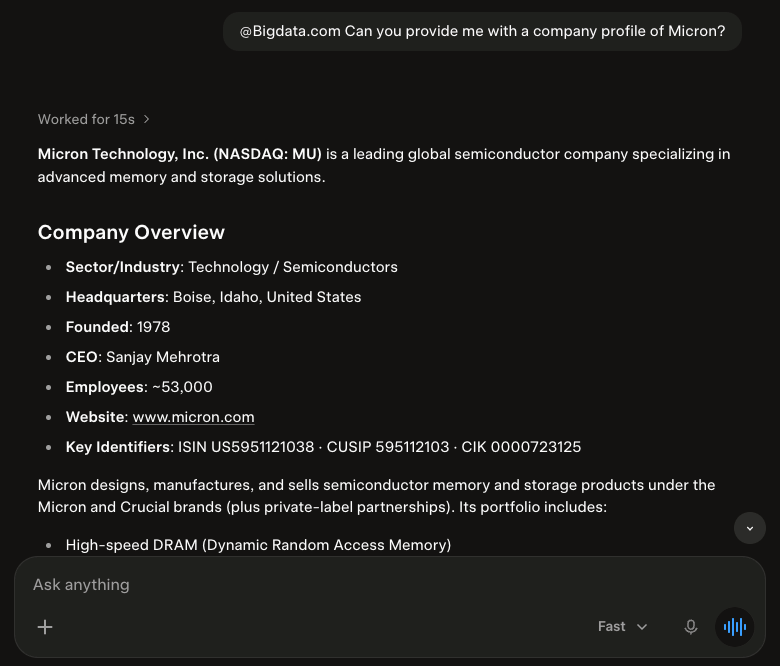
This guide will walk you through setting up the official Bigdata.com Connector in Grok, so you can use it in Grok Web and App. For a quick set up, copy this example prompt, then click the card below to open a new chat in Grok and paste it:

Grok

Open a new chat

Configuration Steps

1
Find the Bigdata.com connector in Grok.
  1. Open Grok
  2. Ask Grok to connect it for you:
    Or do it manually: click Plugins at the bottom of the left-hand sidebar and search for “Bigdata”
  3. Click the Bigdata.com connector and click Connect
Configure Bigdata.com Official Connector
🥳🚀 Done! You should see the Bigdata.com Official Connector added and ready to be used in your conversations Bigdata.com official connector configured Question:
Answer: Ask a question about the financial market